Yono Games APK Not Installing? 10 Ways to Fix It
Last updated 16 Aug 2026
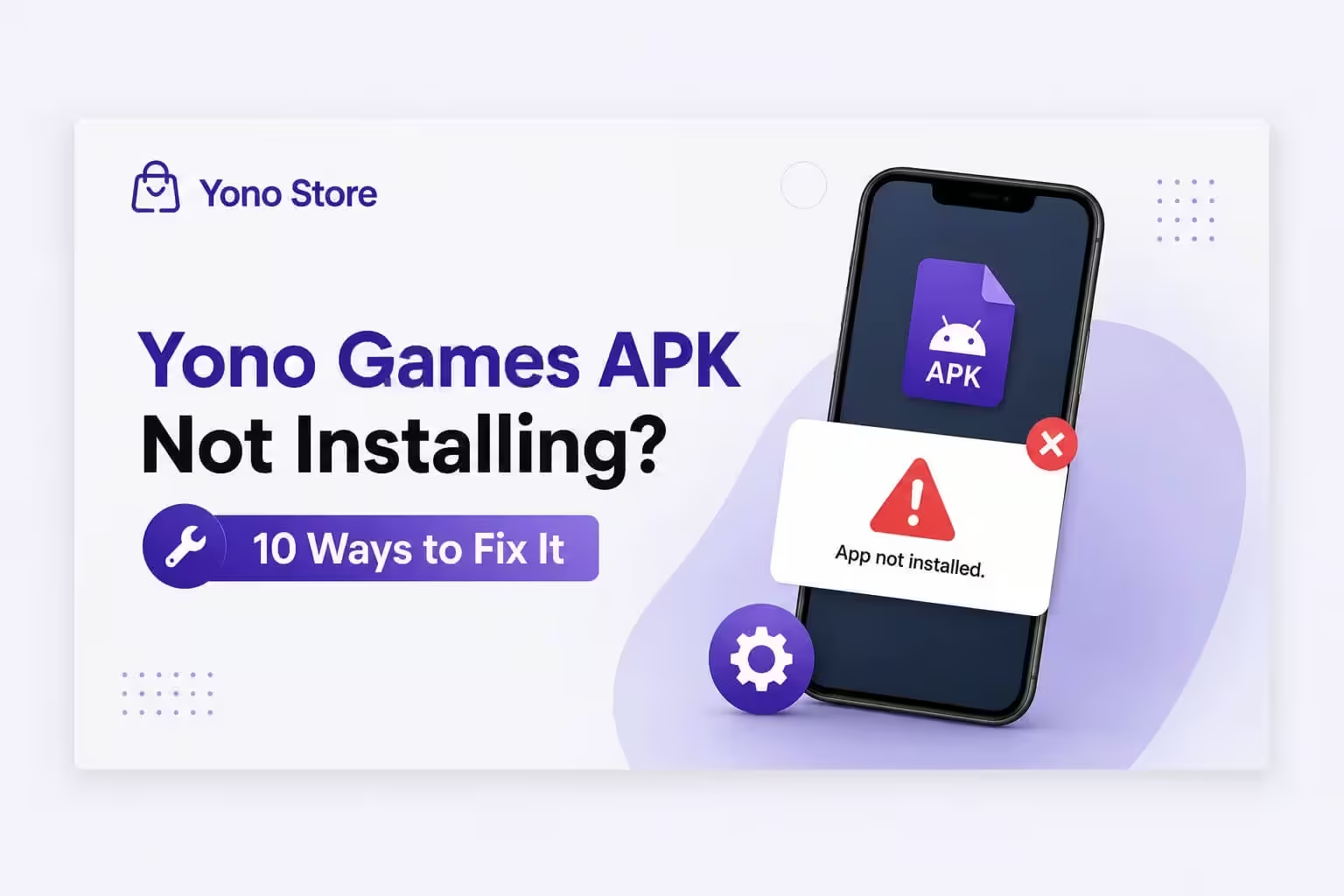
You download the APK, tap install, and nothing happens. Or worse, you get an "App Not Installed" message right when you were ready to play. This is one of the most common problems Android users face when they install Yono games apps outside the Play Store, and most of the time it has a simple fix.
Note for iPhone users: APK files are made only for Android. They will not install on an iPhone no matter what you try, since iOS does not support APK files at all. This guide is for Android devices only.
Before you try anything else, it helps to confirm the file itself is safe and genuine. Our tool to check if a Yono app is safe before installing lets you check any Yono app in seconds, so you know you are installing the real thing and not a fake copy.
Why Yono Games APK Fails to Install
An APK install can fail for a few different reasons, and knowing the cause saves you time:
- Phone storage is full
- Unknown sources permission is not turned on
- The APK file is incomplete or got corrupted during download
- An older version of the app is already on your phone and blocks the new one
- Your phone's CPU type does not match the APK
- The APK is a split file (APKS or XAPK) instead of a normal APK
- Play Protect or another security app is blocking the install
- Package Installer cache is outdated
- Your Android version is too old for the app
Once you know which one applies to you, the fix usually takes just a couple of minutes.
Step by Step Fixes
1. Free Up Storage Space
Android needs extra free space to install an app, not just the size of the APK itself. Go to Settings, check your storage, and clear out old photos, videos, or unused apps if space is tight.
2. Turn On Install From Unknown Sources
Since you are installing outside the Play Store, your phone needs permission to do this. Go to Settings, then Apps, then find your browser or file manager, and turn on "Install unknown apps" for that app.
3. Re-download the APK File
A file that stops downloading halfway or gets corrupted will never install properly. Delete the old file and download it fresh from a trusted source, and make sure the download finishes completely before you open it.
4. Uninstall the Old Version First
If an older version of the app is already on your phone, Android may reject the new file because the signatures do not match. Uninstall the current version, restart your phone, and then try installing the new APK.
5. Check Your Phone's CPU Type
Some APK files are built for a specific processor type, like ARM64. If your phone uses a different type, the install will fail even if everything else is correct. Downloading the version made for your exact device usually solves this.
6. Watch Out for Split APK Files
Some app packages come as APKS or XAPK files instead of one plain APK. A regular installer cannot open these. If your download came as a split package, use an installer app that supports APKS and XAPK files.
7. Check for Play Protect or Antivirus Blocks
Google Play Protect or a third party antivirus app can silently stop an install if it flags the file. Open Play Protect settings and check for any warning, or briefly pause your antivirus app while installing.
8. Clear Package Installer Cache
An outdated cache on the installer itself can cause random install failures. Go to Settings, then Apps, find Package Installer, and clear its cache before trying again.
9. Restart Your Phone
This sounds basic, but a simple restart clears temporary glitches that block installs, and it fixes the problem more often than people expect.
10. Check Your Android Version
Every app needs a minimum Android version to run. If your phone is on an older version, check the app's requirements and update your phone's software if an update is available.
Quick Fix Table
| Problem | Quick Solution |
|---|---|
| Storage full | Clear space before installing |
| Unknown sources blocked | Allow install permission in Settings |
| Corrupted download | Delete file and re-download |
| Old version conflict | Uninstall old app, restart, reinstall |
| Wrong CPU type | Download the version made for your device |
| Split APK file | Use an installer that supports APKS/XAPK |
| Play Protect block | Check Play Protect warning or pause antivirus |
| Installer cache issue | Clear Package Installer cache |
| Random glitch | Restart your phone |
| Old Android version | Update your phone's software |
| Using an iPhone | APK files do not work on iOS at all |
Still Not Installing?
If you have tried all the steps above and the APK still will not install, the file itself may be the issue. Only download Yono games apps from a source you trust, and avoid random links shared in messages or forums, since some of them carry modified or fake files.
For a safe download every time, check out our full list of yono all games page, where every app listed has been checked before it goes up. You can also browse our highest rated yono game apps by real users if you want to see which apps people trust the most. If your issue is with logging in rather than installing, our guide to fix OTP login errors in Yono games apps covers that separately.
Before you install any new app, it also helps to read our guide on staying safe with gaming apps in India, so you know what to check for beyond just the install step.
Responsible Gaming Notice
Yono gaming apps are meant for entertainment. Once your install and login issues are sorted, keep your gaming activity in check and follow the laws of your state. Avoid putting in more money than you can afford to lose, and take a break if gaming starts to feel stressful.
Frequently Asked Questions

I have been evaluating real money gaming platforms in India for the past 5 years, focusing on payment reliability, KYC smoothness and long-term trust signals. My reviews are based on live deposits and actual withdrawals so readers know what to expect before they add funds.